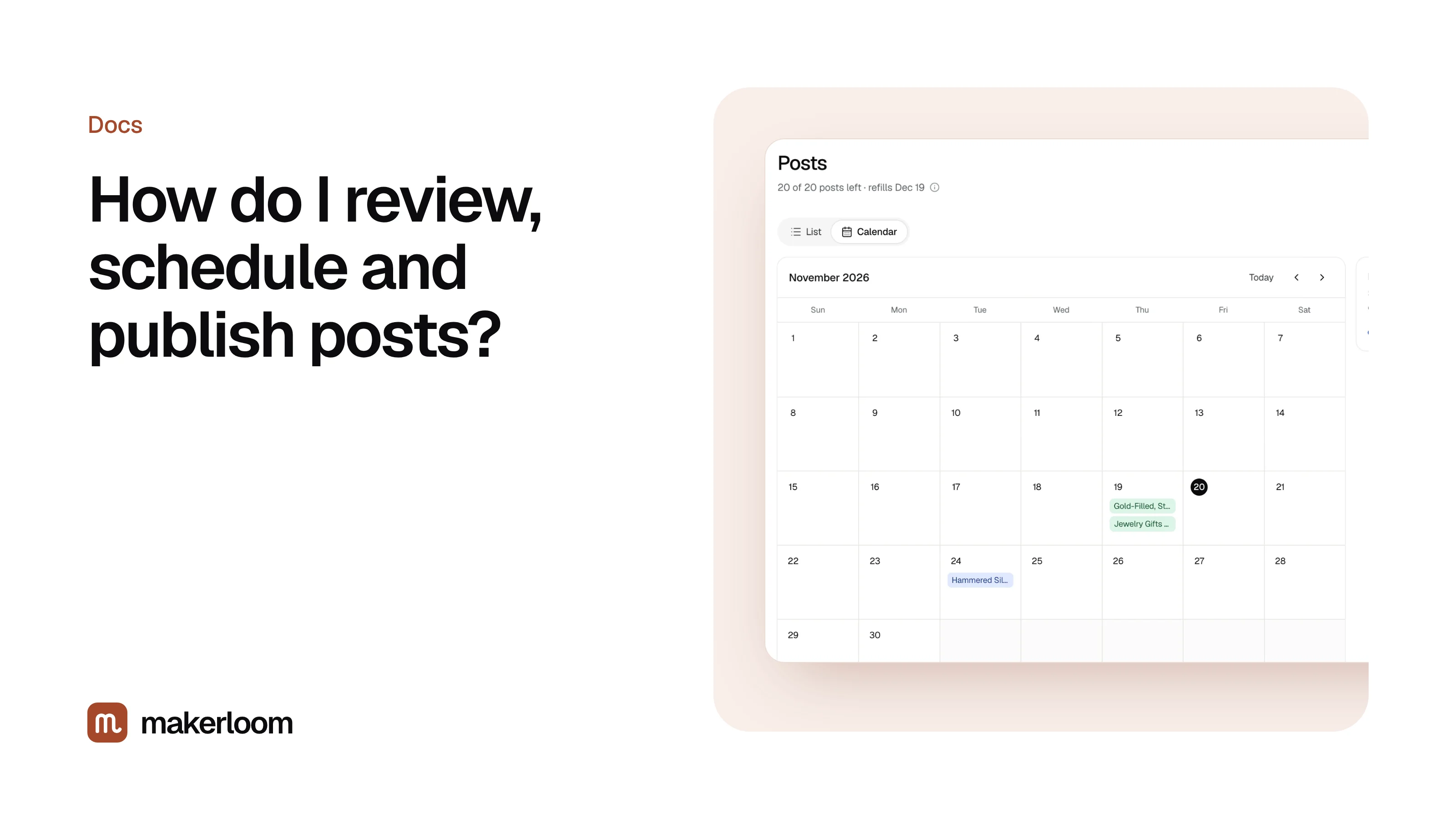
Short answer: open Posts. Drafts waiting for you are counted in the to review button at the top (for example "3 to review"). Open one, make any changes, then click Publish to put it live now or pick a date and time under Schedule. If you'd rather not review every post, turn on Publish without my approval in Settings.
The Posts page
The Posts page has two views.
- List shows every post with its status: Draft (only you can see it), Scheduled (with its date) or Live. Click the to review button to see only drafts.
- Calendar shows a month at a time, with published and scheduled posts on their days. Click a day to see what's on it, or to schedule one of your drafts for that day at a time you choose. Use the arrows to move between months, and Today to jump back.
Reviewing a draft
Open a draft to see the full post, laid out as it will appear on your site. At the top you'll see the search it targets and Why this topic. Things worth checking:
- Facts about your products. Sizes, materials and care instructions should match your listings. If a listing was vague, the post will be too; add detail.
- The opening answer. It should answer the title's question in two or three sentences.
- Your voice. Add a sentence or two only you could write: how you make it, who usually buys it, what customers tell you. This makes posts more useful, and search engines notice.
- The cover photo. Upload a different one if you have a better image.
Click Save to keep your edits. Nothing goes live until you publish or schedule.
Publishing and scheduling
| Button | What happens |
|---|---|
| Publish | The post goes live on your site straight away and is added to your sitemap |
| Schedule | Pick a date and time; the post goes live then, without you |
| Unpublish | Takes a live post down. It becomes a draft again |
| Delete | Moves the post to Recently deleted, where you can restore it |
Automatic publishing
In Settings, choose how many posts a week you want and turn on Publish without my approval. It's off by default. When it's on, Makerloom then writes and publishes on that pace without waiting for you. You can still open, edit or unpublish any post afterwards.
Automatic publishing suits shops that have read a few drafts, are happy with them, and want the site to keep growing during busy weeks. If you sell anything where details matter a lot (sizing, allergies, safety), keep reviewing by hand.
How many posts a week
The choices in Settings depend on your plan, so the monthly allowance lasts the month: up to 2 a week on Starter, 5 on Pro and 10 on Studio. See Plans and pricing.
A steady pace beats bursts. Search engines visit sites that change often more often, and a regular rhythm gives every post time to be found.
Questions
Can I write my own post from scratch?
Yes. Click Write a post with a topic, then rewrite the draft as much as you like. The editor keeps your text as is.
Do I have to review every post?
No. Reviewing is the default because you know your products best, but once you trust the drafts you can turn on Publish without my approval and check posts after they're live instead.